
Learning how to remove closed caption settings across your favorite streaming platforms, smart TVs, and mobile devices is the fastest way to declutter your screen and restore a completely clean viewing experience.
While subtitles and closed captions (CC) are essential accessibility tools for millions of viewers worldwide, having them pop up unexpectedly can be incredibly distracting during movie nights or fast-paced video streams.
Fortunately, turning them off is a quick, universal process, whether you are trying to disable subtitle tracks on a premium streaming application, a physical television remote, an internet browser, or a mobile operating system.
Here is your master architectural guide to permanently turning off closed captions on every major device and platform in 2026.
Turning Off Closed Captions on Modern Smart TVs
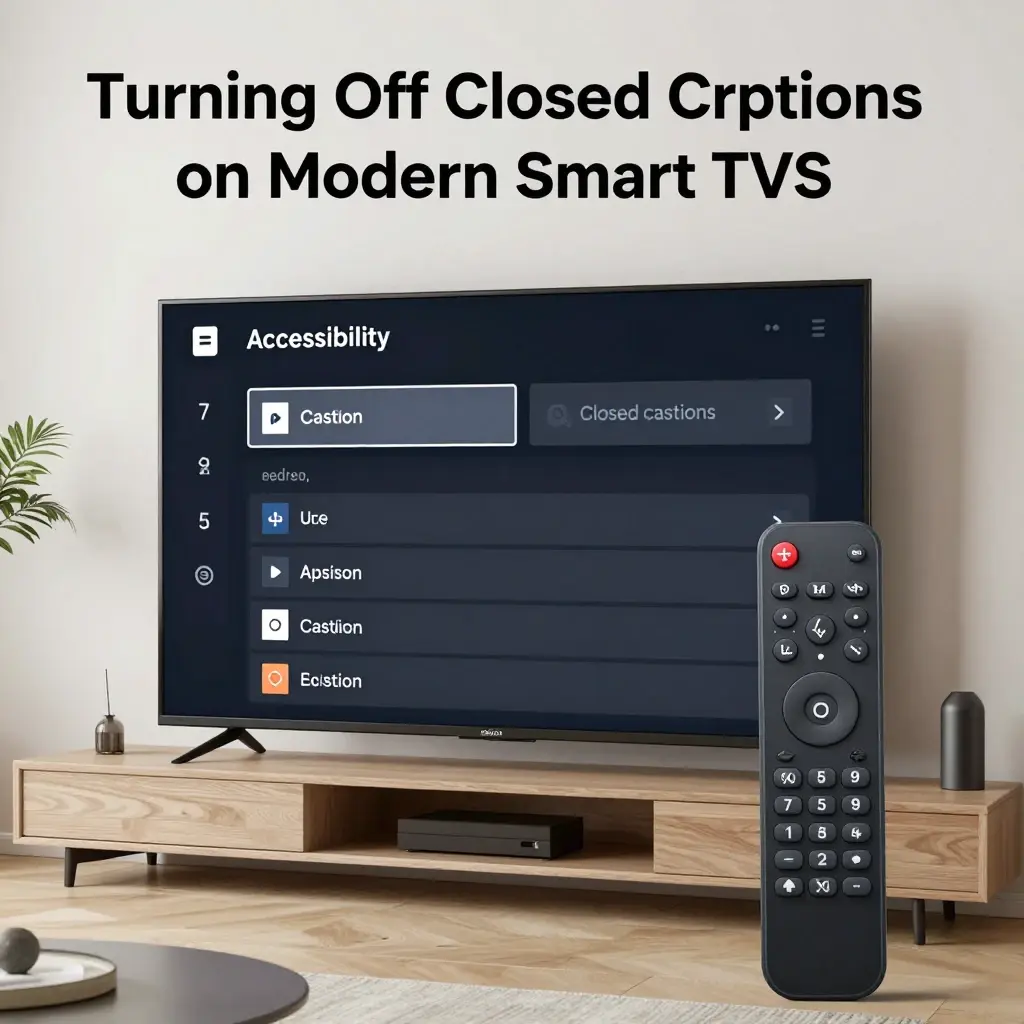
- 📺 Press the dedicated “Subtitle” or “CC” button on your physical TV remote control for an instant toggle off.
- ⚙️ Open the main system “Settings” menu on your television if your remote lacks a shortcut button.
- ♿ Navigate directly to the “Accessibility” or “General” tab within the primary configuration panel.
- 🖥️ Locate the option labeled “Closed Captions” or “Captioning Settings” inside the accessibility list.
- 🛑 Flip the primary toggle switch from “On” to “Off” to instantly clear the text from your screen view.
- 🏷️ On Samsung Smart TVs, access the “System” menu, choose “Accessibility,” and turn off the “Caption” function.
- 🍏 For Apple TV users, swipe down on your remote touchpad while watching a video to access audio options.
- 🪵 On LG TVs, navigate to the “All Settings” wheel icon, select “General,” and open the “Accessibility” panel.
- 📲 Smart TV mobile apps allow you to control text display configurations straight from your smartphone interface.
- ⚠️ If captions persist after turning them off on your TV, the setting is likely active on your input device instead.
- 🧩 Built-in media player apps on smart TVs require you to pause the video track to see text options.
- 🎚️ Keeping your TV firmware updated prevents software glitches that cause captions to turn back on randomly.
- 📺 Fire TV Edition sets integrate caption preferences into the central Amazon device settings dashboard.
- 🎙️ Voice-activated remotes let you speak commands like “Turn off captions” to disable the feature instantly.
- 🕹️ Game consoles plugged into your television display separate subtitle layers controlled within the console menus.
- 🌐 Check your TV user guide online if your specific brand uses a non-standard menu layout.
- ✨ Disabling television captions clears up your visual landscape for a true cinematic experience at home.
Disabling Subtitles on Leading Streaming Apps (Netflix, Prime)
- 🎬 Pause your current video stream on Netflix to reveal the player control bar at the screen bottom.
- 💬 Click or tap on the “Audio & Subtitles” dialog bubble icon located right next to the play wheel.
- ❌ Select the option labeled “Off” under the subtitles column to stop the text track immediately.
- 📈 Netflix saves your choice automatically across all connected household profile screens and mobile devices.
- 📦 On Amazon Prime Video, click the visual notepad icon in the upper right-hand corner of your screen.
- 🛑 Choose “Turn Off” from the available text dropdown list to clear the visual overlay right away.
- 🦚 Hulu users can push the “Up” arrow key on their remote control to open the video options menu.
- ⚙️ Click on the “Settings” gear, select “Subtitles,” and toggle the selection to the off position.
- 🍿 Max (formerly HBO Max) stores caption preferences behind the speech bubble symbol on the scrub bar.
- 📱 Mobile streaming apps require a quick single tap on the active video window to reveal the CC toggle.
- 🌐 Browser extensions that force subtitles can override native app settings, so check your active plugins.
- 🛍️ Apple TV+ tracks caption preferences based on your primary iCloud system accessibility setups.
- 🧩 Free ad-supported streaming apps like Tubi place caption controls directly on the main playback bar.
- 🏎️ Fast-forwarding or rewinding a stream too quickly can occasionally cause text alignment to stutter or stick.
- 👥 Kids profiles inside streaming apps can have custom parental controls that lock subtitle tracks on.
- 📊 Checking your app settings menu on a desktop computer gives you full global control over text sizing.
- ✨ Taking control of your streaming apps ensures unhindered viewing for all your favorite shows and movies.
Disabling Captions on YouTube (Desktop and Mobile)
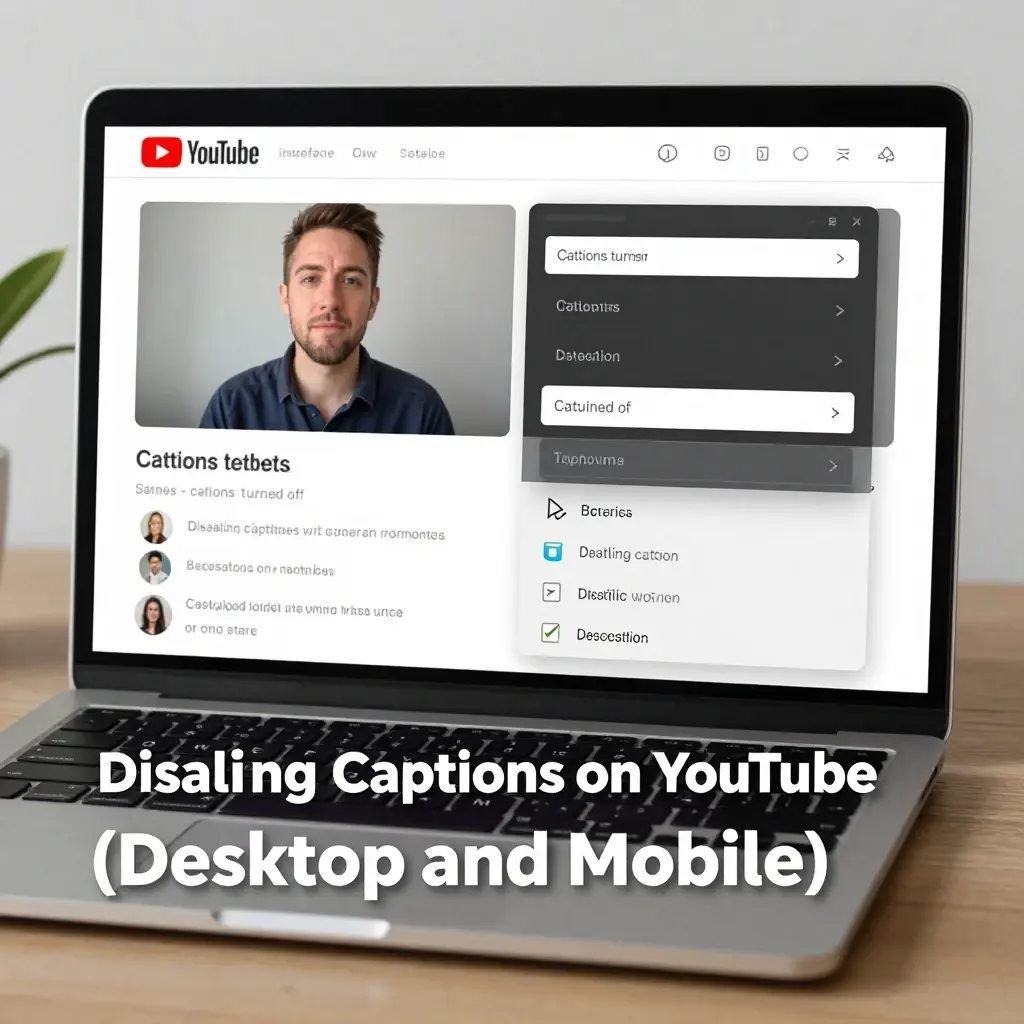
- 📹 Click the white “CC” rectangular icon located in the bottom right corner of the YouTube desktop player.
- ⌨️ Press the “C” key on your computer keyboard as a quick manual shortcut to toggle captions off.
- ⚙️ Tap on the “Settings” gear icon next to the CC button to fine-tune your subtitle choices.
- ❌ Click on “Subtitles/CC” inside the popup menu and choose the “Turn off captions” text option.
- 📱 On the YouTube mobile app, tap the video screen to reveal the floating overlay options menu.
- 🤖 Auto-generated captions are turned on by default for many videos based on your main account history.
- 🌐 To disable captions globally, click your profile picture and navigate to the YouTube account settings page.
- 🗂️ Select the “Playback and performance” tab located on the left-hand menu column layout.
- 🔕 Uncheck the box that says “Always show captions” to prevent text from appearing on new videos.
- 🧩 Third-party YouTube player extensions can override default styles, so manage your browser extensions carefully.
- 📲 YouTube Shorts require you to tap the three dots icon in the corner to toggle live caption text.
- 📉 Clearing your mobile browser cache fixes common bugs where YouTube text remains stuck on screens.
- 💡 Video uploaders can occasionally hardcode text directly into the video file, making it impossible to remove.
- 🗣️ Voice searches on YouTube do not automatically turn captions back on unless specified in commands.
- 📊 YouTube Premium accounts sync caption preferences flawlessly across your smart TV, phone, and tablet.
- 🛑 If you encounter a bug, reloading the web browser page usually restores normal player functionality.
- 🎨 Customizing caption backgrounds to transparent is an alternative if you cannot turn them off completely.
- ✨ Disabling YouTube captions lets you focus entirely on the video content creator’s visual storytelling.
Removing Live Captions on iPhone and iPad (iOS)
- ⚙️ Launch the primary “Settings” application from the home screen layout of your Apple iOS device.
- ♿ Scroll down the main menu column and select the “Accessibility” category preference option.
- 👁️ Locate the “Hearing” section header block and tap on the “Subtitles & Captioning” menu link.
- 🛑 Turn off the green toggle switch sitting next to the option labeled “Closed Captions + SDH.”
- 📱 For real-time speech text, find the “Live Captions (Beta)” menu setting inside the same section panel.
- 🔕 Flip the toggle to grey to stop your iPhone from automatically transcribing all microphone audio.
- 🗣️ Siri voice commands can handle this instantly: just say “Hey Siri, turn off closed captions.”
- 🧩 Individual media apps like Safari respect your central iOS accessibility rules for web video tracks.
- 🚨 Turning off system captions saves a minor amount of device battery life and processor energy usage.
- 💬 Group FaceTime text windows disappear the second you shut down the primary live caption tool.
- 🛠️ If text stays visible on your screen, check if you have an active custom accessibility shortcut turned on.
- 📲 Triple-clicking your device power button can trigger caption features if mapped incorrectly in settings.
- 🔄 Restarting your iOS device after a software update ensures new caption preferences settle in correctly.
- 🗂️ Managed corporate or school iPhones may lock accessibility profiles, requiring administrative access.
- 🎧 AirPlay streaming to external speakers or TVs carries over your specific iOS text track choices.
- 🎨 You can leave captions enabled but shrink the font size to microscopic if you want them hidden.
- 🔒 Apple protects your absolute privacy by processing all live caption text transcriptions locally on your device.
- ✨ Keeping your iOS screen clean of text allows you to enjoy mobile media exactly as intended.
Removing Live Captions on Android Devices and Samsung Galaxy
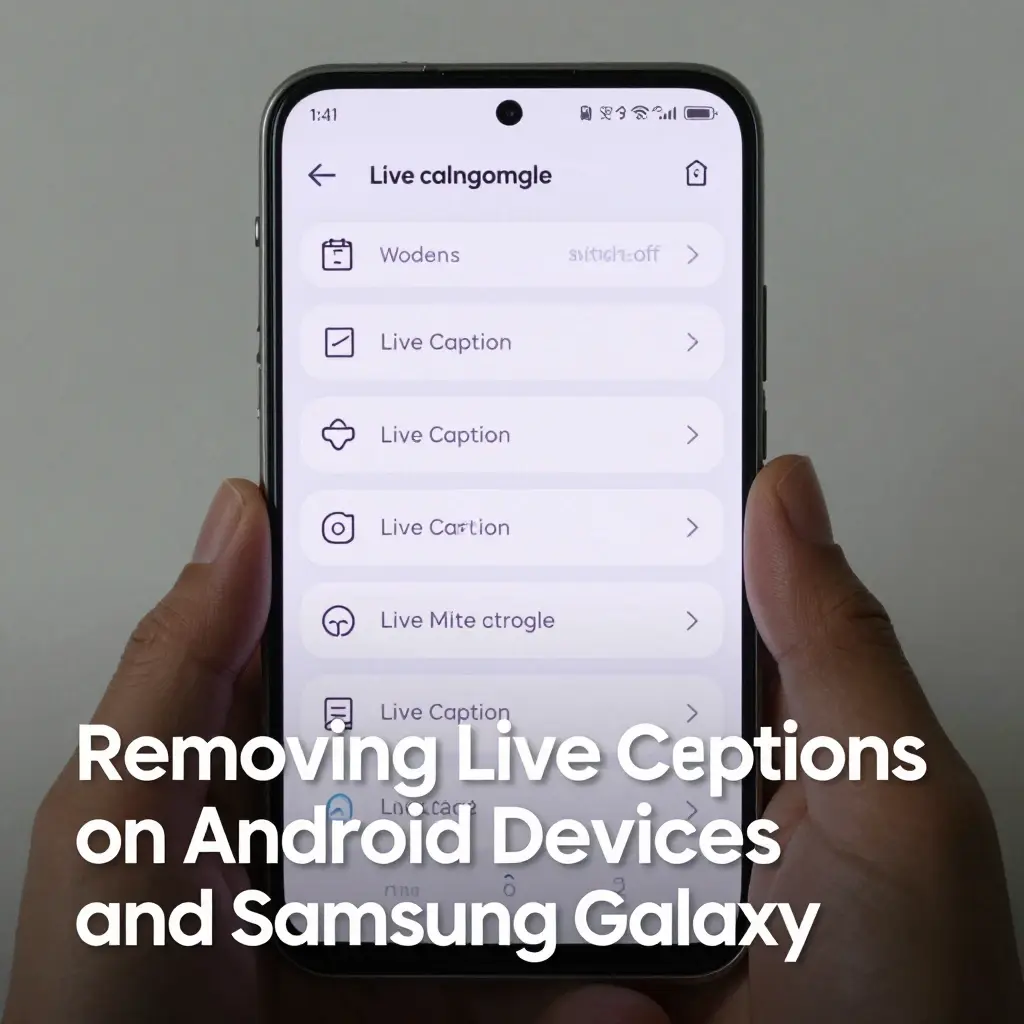
- ⚙️ Slide down your device notification shade and tap the gear icon to enter Android system settings.
- ♿ Scroll down through the options panel and choose the “Accessibility” or “Hearing Enhancements” tab.
- 📱 Tap directly on the feature named “Live Caption” to open its dedicated customization menu screen.
- 🛑 Slide the primary master switch to the “Off” position to deactivate real-time audio text rendering.
- 🔕 Tapping the small speech bubble icon directly below your volume slider turns the text feature off instantly.
- 🤖 Google Pixel devices allow you to swipe up on the live text window to clear it off your screen.
- 💬 Deactivating this tool prevents your phone from transcribing podcasts, phone conversations, or video files.
- 🔋 Turning off Android Live Caption helps reduce daily background battery drain on older mobile processors.
- 📲 For Samsung Galaxy users, this setting lives inside the “Hearing Enhancements” subsection menu.
- 🎙️ Google Assistant can disable the tool for you with a basic phrase like “Turn off Live Caption.”
- 🧩 Third-party media players like VLC for Android maintain separate internal subtitle track selectors.
- 🧼 Clear your system accessibility app cache if the text window becomes frozen or refuses to close out.
- 📁 Android auto-captions do not save permanent text files to your local storage drive workspace.
- 🛡️ Disabling the feature keeps your system interface clean and prevents accidental text triggers during use.
- 🔤 Standard web browser videos inside Google Chrome obey your main Android accessibility guidelines.
- 🛑 Avoid using custom accessibility skin overlay packages that force caption boxes onto your grid.
- 📊 Monitoring your device performance shows that turning off transcription frees up system RAM speed.
- ✨ A caption-free Android setup ensures an unhindered, full-screen digital experience for all media.
Disabling Captions on TikTok and Reels
- 📱 Tap the “Me” or profile icon situated in the bottom right corner of the TikTok mobile application.
- ☰ Open the upper right corner settings by tapping the three horizontal parallel lines icon.
- ⚙️ Click on the “Settings and Privacy” link option to access your global app dashboard space.
- ❌ Locate the option labeled “Captions” and switch the toggle directly to the off position.
- 📹 On an individual video clip, tap the small text caption box on your screen to reveal shortcuts.
- 🛑 Select the “Hide Captions” command text from the tiny pop-up window bubble to clear your view.
- 📸 For Instagram Reels, tap your profile picture, open the menu wheel, and choose “Settings.”
- 🔤 Search for “Captions” or enter the “Accessibility” tab to find video text management options.
- 🚫 Toggle off the “Show Captions” control switch to keep user video descriptions clean of auto-text.
- ⚡ Creators can bake text directly into video edits, meaning those captions cannot be removed by users.
- 📊 Disabling automated app captions makes it significantly easier to view the actual background video action.
- 🔄 If the application glitches and text returns, check for available app store software updates.
- 🧠 Turning off text helps you consume short-form video loops faster without read distractions.
- 📲 App caches filled with heavy data can cause subtitle options to freeze up during feed scrolling.
- 🛡️ Instagram and TikTok use advanced AI to auto-generate video captions if creators forget them.
- 🎧 Removing text tracks does not silence the background music or trending audio sounds of clips.
- 🎂 Tailoring your video app display controls gives you a highly customized, distraction-free social feed.
- ✨ Getting rid of app captions keeps your social media experience visually focused, crisp, and clean.
Turning Off Captions in Web Browsers (Chrome, Safari, Edge)
- 🌐 Open your Google Chrome desktop browser window and click the three vertical dots menu button.
- ⚙️ Choose the “Settings” link option from the drop-down list to open the browser control hub.
- ♿ Click the “Accessibility” button tab found on the left-hand navigation sidebar column workspace.
- 🔇 This action stops Chrome from automatically creating real-time text layouts for any online video audio.
- 🧭 For Apple Safari users, open the main Mac system settings instead of individual app choices.
- 🖥️ Select “Accessibility,” click “Captions,” and uncheck the box for media subtitle tracks.
- 💻 Microsoft Edge users can type “edge://settings/accessibility” into their address bar search field.
- 🔕 Toggle off the transcription tools to keep your daily web browsing completely text-free.
- 🛠️ Chrome displays a tiny musical note icon in the top toolbar when media files are actively playing.
- ❌ Click that music icon and toggle off captions directly inside the mini control box window.
- 🧼 Check your browser extensions dashboard list and turn off any active language subtitle plug-ins.
- 🔄 Refresh your browser page after making changes to ensure old text overlays fade away completely.
- 📊 Disabling browser transcriptions can slightly reduce your active computer memory and CPU load.
- 🔒 Web browser live caption tools analyze audio processing locally on your computer to keep data safe.
- 📱 Mobile web browsers on your smartphone follow your main iOS or Android accessibility profiles.
- 🛑 Hardcoded video captions on website landing pages cannot be disabled through browser setting menus.
- 📁 Clearing your browser cookies and historical data helps fix lingering, broken caption layout errors.
- 🎯 Match your browser settings to your specific workflow goals to maximize your daily digital comfort.
Disabling Subtitles on Facebook and Twitter/X Media Players
- 📱 Tap the menu button lines inside the Facebook app and open your “Settings & Privacy” options.
- ⚙️ Click on “Settings” and scroll down until you locate the “Media” preference selection link.
- 🛑 Toggle the caption button to off to keep video clips running completely clear of text lines.
- 🐦 For Twitter/X video media, tap the visible “CC” button in the upper corner of the media playback tray.
- 🔕 Tapping the CC icon instantly turns off the automated AI transcription text layer for that clip.
- 🔄 The platform remembers your choice for the duration of your active scrolling session in the app.
- 📲 Global phone accessibility setups can occasionally override social network media player choices.
- 📊 Turning off automated social media text tracks prevents text lines from blocking important graphic elements.
- 🧠 Social app algorithms use caption keywords for category discovery even if you turn the visual text off.
- 🧼 Clear out your social media application data files if caption buttons disappear from the media viewer.
- 🎙️ Live streams on social networks feature their own unique text overlays controlled by the broadcaster.
- 👥 Facebook groups can share video files that require custom audio settings inside the group interface.
- 📲 Keep your social apps updated to the newest 2026 version to avoid sticky caption rendering bugs.
- 🔒 Restricting text overlays protects your screen real estate and keeps the platform visual feed clean.
- 🛡️ Social networks auto-transcribe uploads to boost engagement metrics across mute user devices.
- 🎯 Unchecking automated play preferences keeps your timeline moving quietly without surprise text boxes.
- 📉 Turning off caption rendering helps keep high-definition social video play loops running smoothly.
- ✨ Clean social feeds let you focus on your friends’ true visual media updates without extra clutter.
Removing Closed Captions on Media Players (VLC, QuickTime, Windows Media)
- 💿 Open your desktop VLC Media Player window and look at the top horizontal command menu strip.
- 💬 Click on the “Subtitle” menu tab option to open the drop-down video track controls.
- ❌ Select “Sub Track” from the popup list and click the command phrase labeled “Disable.”
- 🍏 For Apple QuickTime Player users, click the small subtitle speech icon on the playback bar layout.
- 🛑 Choose “Turn Off Subtitles” from the options list to clean up your video frame instantly.
- 💻 On Windows Media Player, right-click anywhere inside the active video presentation workspace.
- 🔕 Hover your mouse over “Lyrics, captions, and subtitles” and select the “Off” option choice.
- 📁 External subtitle files (.SRT or .SUB) stored in your movie folder can be safely deleted or renamed.
- 🛠️ Check your default media player configurations to permanently set text tracks to an off state.
- 🧼 Keeping video directory folders clean of extra asset files prevents players from loading unwanted text layers.
- 📀 Physical DVD and Blu-ray discs require subtitle track selection updates inside their main disc menus.
- 🔊 Advanced media tools let you separate audio channels without rendering any text data on screen.
- 📱 Mobile media player applications for tablets use simple swipe gestures to hide active text selections.
- 📊 Disabling complex subtitle rendering can slightly improve playback smoothness on older laptop machines.
- 🧠 Save your media player configurations before closing the application window to keep text turned off.
- 🛑 Avoid clicking random player shortcut keys that accidentally reactivate caption tracks during view loops.
- 🗂️ Organize your movie files neatly to maintain absolute control over all attached subtitle asset paths.
- ✨ Eliminating desktop player text tracks guarantees a pristine, full-screen cinematic experience at home.
Disabling Captions on Video Conferencing Platforms (Zoom, Teams)
- 💻 Click the “More” or “Apps” three dots button on your primary Zoom control toolbar layout.
- 💬 Locate the option labeled “Captions” or “Live Transcript” inside the available options panel.
- ❌ Click on the command button that says “Hide Captions” to turn off real-time meeting text.
- 👥 Meeting hosts can disable live transcription globally for all attendees inside account web portals.
- 🏢 For Microsoft Teams meetings, click the three horizontal dots icon at the top of the window frame.
- 🔕 Select the command option phrase “Turn off live captions” to clear meeting text immediately.
- 🔊 Google Meet users can tap the prominent “CC” toggle switch icon on the bottom video tray bar.
- 🚨 Tapping the CC icon instantly stops the live speech-to-text translation engine for your layout view.
- 📱 Mobile video calling apps hide transcription toggles inside upper corner setup menus.
- 🧠 Focus entirely on the speaker’s vocal tone and physical slide content without reading distractions.
- ⚙️ Check your corporate account portal preferences to permanently disable caption startups for all meets.
- 📊 Disabling real-time caption transcription saves minor internet bandwidth data usage on weak connections.
- 🛠️ Update your conference app software version regularly to fix sticky caption rendering problems.
- 🧼 Clean, caption-free call screens make it significantly easier to capture clean screenshots of presentation slides.
- 💬 Individual participants can manage their own text display settings without interrupting the team flow.
- 🛡️ Privacy settings ensure text transcripts are deleted immediately after the live meeting concludes.
- 🏢 Enterprise network administrators can lock accessibility profiles based on company-wide communication compliance rules.
- ✨ Clean meeting screens keep your focus sharp and your business conversations professional and clear.
Troubleshooting Sticky and Glitched Captions That Won’t Turn Off
- 🔄 Power cycle your streaming hardware device completely by unplugging it for sixty seconds flat.
- 🧼 Wipe out the system cache files inside your device settings app menu to destroy broken text loops.
- ⚙️ Factory reset your smart TV accessibility profiles if menu toggles fail to clear the text track.
- 📲 Delete and reinstall glitched mobile applications to fully restore default screen play settings.
- 🌐 Log into your streaming account profile using a desktop browser to change global text preferences.
- 💿 Update your media player software tool version to patch up lingering subtitle display bugs.
- 🔤 Verify that custom font generator applications are not forcing hidden text overlays onto your screen.
- 🔌 Test different video input cables (HDMI ports) to ensure no signal data glitches are occurring.
- 🗂️ Check for active parental control blocks that might lock subtitle text tracks on by default.
- 🛠️ Read official online brand community boards to uncover device-specific hardware bugs and fixes.
- 🧼 Keep your physical remote control buttons clean to prevent stuck subtitle keys from firing commands.
- 📊 Track when the caption glitch happens to pinpoint if a specific app or system update caused it.
- 🛡️ Disable third-party browser overlay plugins that interfere with standard HTML5 video player settings.
- 📡 Reset your home internet router box to fix streaming network delays that cause text sync freezes.
- ⚖️ Adjust your text box background opacity to 0% as a clever trick if captions refuse to turn off.
- 💬 Reach out to customer support avenues if system-level caption options continue to ignore your inputs.
- ✨ Solving sticky caption bugs restores your media setup to an optimal, beautifully clean viewing state.
FAQ:
1: Why do closed captions keep turning back on automatically?
A: Closed captions may re-enable because device accessibility settings override app preferences. If captions are enabled in your TV, Android, or iPhone settings, they can automatically turn back on in apps like Netflix or YouTube.
2: What is the fastest way to turn off captions on a smart TV remote?
A: The quickest method is pressing the CC, Subtitle, or MTS button on your remote. This instantly toggles captions on or off. If your TV supports voice commands, you can also say “Turn off captions.”
3: Can I remove subtitles that are baked directly into a movie file?
A: No. Hardcoded subtitles are permanently embedded into the video image and cannot be removed. Only soft subtitles, which are stored as separate tracks, can be turned on or off through player settings.
4: How do I turn off the live text transcription box on my phone screen?
A: On Android, press a volume key and tap the Live Caption icon, or dismiss the caption box. On iPhone, go to Settings > Accessibility > Live Captions and switch the feature off to remove on-screen transcriptions.
5: Does turning off closed captions save device battery life?
A: Standard captions use very little power, but disabling Live Captions or real-time transcription features can help save battery. These tools continuously process audio, which increases CPU usage and power consumption.
6: Why does the caption button disappear on some social media videos?
A: The caption button may disappear if captions were not provided, subtitles are hardcoded into the video, or the app is experiencing a temporary issue. Restarting the app or clearing its cache often resolves the problem.
Conclusion:
Knowing how to remove closed caption settings gives you complete control over your digital entertainment layout, ensuring a crisp, unhindered viewing experience across all your screens.
While caption tracking tools are vital for digital accessibility, mastering the toggles allows you to easily switch them off when they are no longer needed.
By aligning your individual streaming app settings with your central device accessibility profiles, you can put a permanent stop to glitchy text pop-ups on your smart TV, phone, web browser, or social media feeds.

Charlotte Young is a creative content writer and digital storyteller who specializes in crafting engaging captions that bring social media posts to life. With a deep understanding of trends, emotions, and audience engagement, she creates powerful caption ideas for Instagram, TikTok, and modern content platforms.